Change the company name and country of a team
note
We do not amend invoices for Basic and Pro plans once issued. Users should provide the correct details before purchase.
Change the company name and country
- Verify the request comes from a team Owner. Otherwise, ask them to have the Owner make the request.
- Locate the team, if the request is in Intercom, you should have all the information there, otherwise check in MariaDB (
teamstable) and get the Stripe customer ID. - Log in to Stripe and search for the customer ID.
- Update the customer information in Stripe:
- Change the company name in the customer's billing details.
- Change the country in the customer's address/billing details.
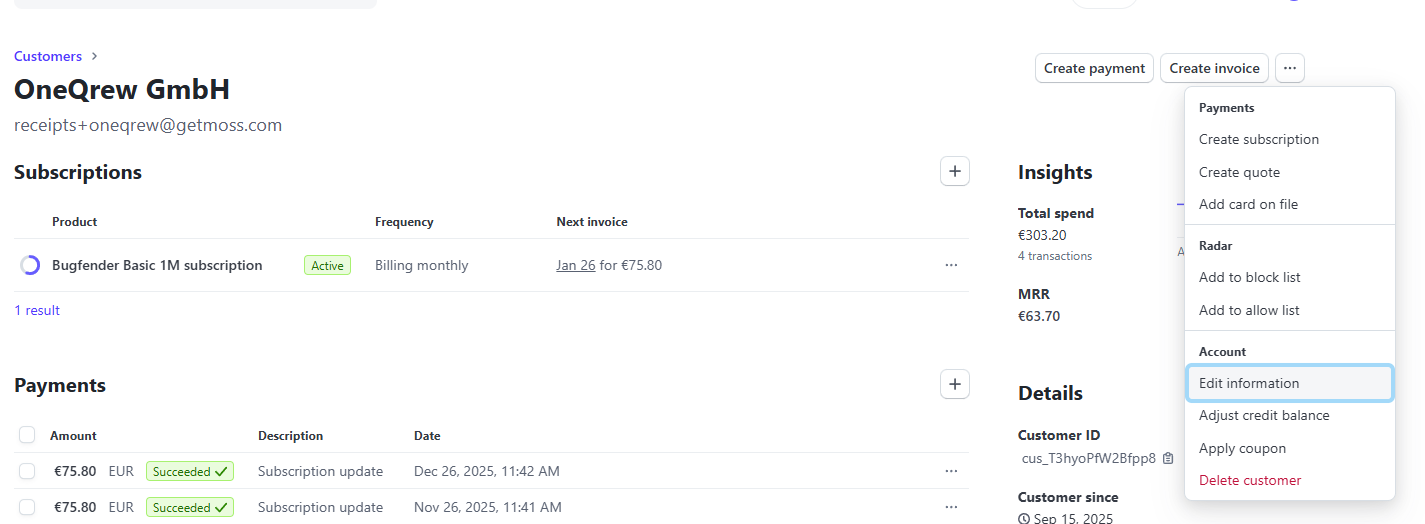
- Update the
teamstable in MariaDB with the new company name and country.
Change the VAT ID
-
If no VAT ID is provided:
- Set the appropriate VAT rate on the customer in Stripe and ensure it is charged.
- Check the subscription and update the VAT rate there too, if necessary. Do not prorate.
- Update the
teamstable to remove the VAT ID (set to NULL or empty).
-
If a VAT ID is provided:
- Validate the VAT ID in the VIES database. If validation fails, inform the user and request a corrected VAT ID.
- Set the VAT ID in Stripe. Set the VAT as reverse charge if applicable (typically for B2B transactions within the EU where the customer is VAT-registered).
- Set the VAT ID in the
teamstable.
-
Inform the user that the changes were made and notify them of any VAT changes if applicable.